Tablet Sync & Status Improvements — What Changed
Background
A team member's tablet recently crashed when trying to load its configuration from our server — the local "device build" failed and the tablet showed 0 devices. The root cause: one of the devices had only 1 of 4 alarm thresholds filled in, which the tablet's parser couldn't handle. We fixed that specific issue immediately, then did a broader sweep to find and fix any other places where the server might send data the tablet can't safely handle. While doing that, we also discovered the "Stale" status badge was confusing staff and worked through a fix for that too.
Part 1 — Tablet sync hardening (server → tablet)
The problem
When the server sent device configuration to the tablet, certain edge cases in our data would cause the tablet's parser to crash partway through. When that happens, the tablet either shows no devices, shows the wrong devices, or silently keeps showing yesterday's data — and staff has no way to tell.
We audited the server code by reading the tablet's actual source code (its parser is very strict — it expects every field to be exactly the right shape), and found three real crash triggers still lurking in our data.
What we fixed
1. Channels with missing kind information no longer crash the whole location
Previously, if even one channel in our database had a missing "kind" field (temperature, humidity, etc.), the entire configuration request would fail with a server error, and every tablet at that location would be stuck showing old data until the bad row was manually fixed. Now we skip just that one broken channel, log a warning so the dev team knows about it, and the rest of the location continues working normally.
2. Devices with no label no longer crash the tablet
The tablet expected every device to have a name. If a device was missing its label in our database, the server sent null — which the tablet's storage layer can't handle and crashed mid-load. We now send an empty string instead, which is safe.
3. Devices with no "primary channel" setting no longer crash the tablet
Same shape of problem — the tablet's display setting was being sent as null when the configuration didn't match up. Fixed in the same way.
How we made sure we wouldn't break the 50+ tablets in production
Because we have no way to test against a real tablet in the office, we built a snapshot test suite before shipping any fixes. It captures the exact bytes the server sends in 10 different device configurations (well-formed device, no channels, missing label, etc.). Every code change had to prove the output stayed identical except for the specific fields we intended to change.
Before deploying, we also ran two database checks to confirm there were no other lurking issues — both came back clean.
The Sunday deploy went out and the team has confirmed it's working. Tablets that were previously stuck have started receiving fresh configurations.
Part 2 — Tablet Status badge improvements (UI)
The problem we found
The "Stale" badge on the Locations list was confusing staff. A team member saw it and wasn't sure whether they needed to re-onboard the tablet to fix it. While looking into this, we also found that the system was sometimes labelling perfectly-working locations as "Never Synced" — which is alarming and almost always wrong. (Those locations had actually synced before, they'd just been offline for more than a week.)
What we fixed
The "Never Synced" label was lying. Locations that had previously synced but went quiet for more than 7 days were being shown as "Never Synced" with a red danger badge. This is what was prompting staff to re-authenticate tablets that didn't need re-authenticating.
We added a new status — "Offline" — for tablets that used to work but haven't checked in for over a week. "Never Synced" now only appears when we have genuinely never received any data from that location (e.g. brand-new setups).
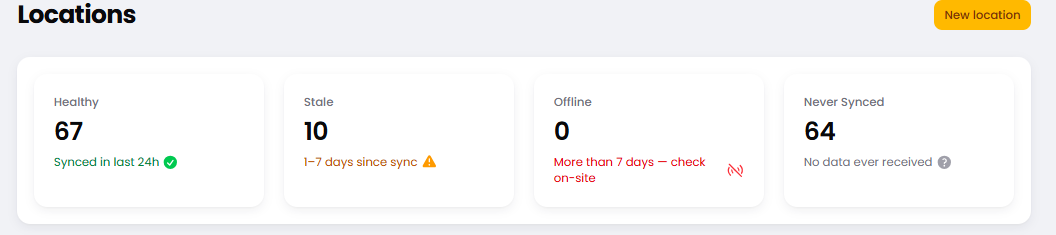
The four possible badges are now:
🟢 Healthy — synced within the last 24 hours
🟡 Stale — last sync was 1–7 days ago (usually self-recovers)
🔴 Offline — more than 7 days — the tablet should be checked on-site
⚪ Never Synced — no data has ever been received
The badge now tells you what to do. Hover over the status badge on any location and you'll see a tooltip with the actual last-sync time and a plain-English explanation. For example:
"Last sync was 8 days ago. The tablet should be checked on-site — it may be powered off, disconnected from WiFi, or replaced."
This means staff can see at a glance whether re-authentication will help (it won't, in most cases) or whether someone needs to physically check on the tablet.
The column is now called "Tablet Status" instead of "Health". "Health" was vague. "Tablet Status" tells you exactly what you're looking at.
What we added (Admin only)
Tablet Health Overview widget. On the admin Locations page, there's now a row of four cards at the top showing how many tablets are in each state:
✅ 12 Healthy · ⚠️ 2 Stale · 🔴 1 Offline · ⚪ 0 Never Synced
Click any card to jump straight to a filtered list of those tablets.
"Diagnose" button on every Location's edit page. A new blue Diagnose button at the top of any Location's admin page runs a series of read-only checks and shows them in a popup:
Is the location active?
Are tablet credentials configured?
When did the location last sync?
How many devices are assigned?
Have any devices stopped reporting in the last 24 hours? (lists them by name)
Are any devices missing their channel setup?
Have there been any sync errors in the last 7 days? (with a breakdown)
Have any logs been rejected recently?
Issues are sorted to the top with red/yellow icons. Healthy items show in green at the bottom. The button is safe to click any time — it doesn't change anything, just looks.
What staff should do differently
Don't reflexively re-authenticate tablets when you see "Stale" or "Offline". The status badge now tells you what's actually happening — read the tooltip first.
"Offline" almost always means someone needs to physically check the tablet (is it powered on? On the WiFi? Did someone move it?).
If unsure, click the Diagnose button on the location's admin page — it'll tell you in plain English what's working and what isn't, and you can paste the result into a message to the dev team.
Nothing breaks
All changes were additive. No tablet behaviour changes were forced, no API contracts were broken, no database migrations were needed. If anything looked off after the deploy, we could revert with a single click — which we haven't had to do.